
What it is
A client setting that lets you rearrange the resizable screen: move the chatbox, minimap and side panel, make the chat taller and scale the side panel up to 3x.
Requirements
The game screen in Resizable mode. In Fixed mode nothing changes.
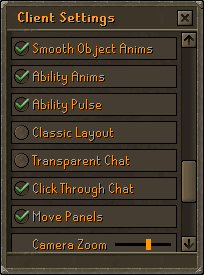
The Move Panels setting ticked. It is off by default.
How it works
Open the Settings tab and click the Graphic Options button to open Client Settings.
Tick Move Panels. The chatbox tells you how it works.
Hold Shift and point at a panel. A gold rim and a gold move cross show on the panel under your mouse.
Keep holding Shift and drag the panel's frame or its cross to move it.
Let go of the mouse to drop it there. Your layout is saved with your client settings.
Interface and controls
| What | How |
|---|---|
| Move a panel | Shift + drag its frame or gold cross |
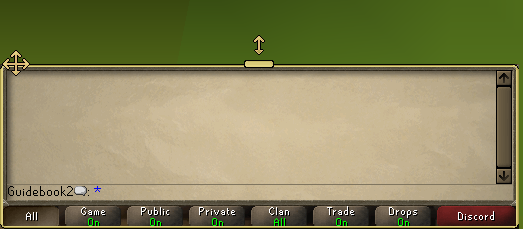
| Make the chat taller | Shift + drag the gold grip on the chat's top edge |
| Scale the side panel | Shift + drag the gold corner bracket on the side panel |
| Reset | Shift + right-click a panel |
Chatbox height
Drag the gold grip up to add lines and down to remove them; a "lines" counter shows while you drag.
The chat goes from 8 lines up to 28, as far as your window has room.
Side panel size
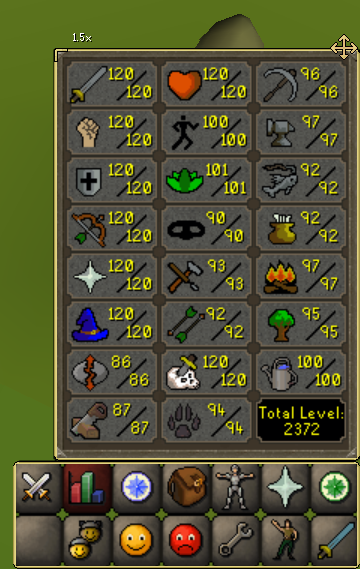
Drag the gold corner bracket to grow or shrink the side panel. The opposite corner stays where it is.
Any size from 1x to 3x, as far as the screen has room; the current size (for example "1.5x") shows beside the bracket while you drag.
It clicks onto exactly 1x, 2x or 3x when you drag close to them.
The minimap can be moved but not resized.
Resetting
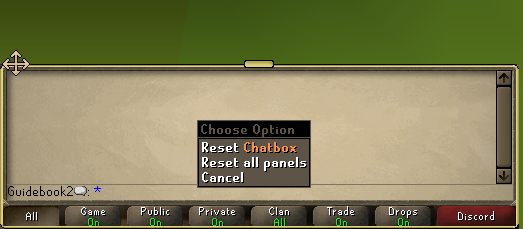
Shift + right-click a panel to get two options at the top of the menu: a reset for that panel and Reset all panels.
Reset Chatbox (on the chat): back home at 8 lines.
Reset Minimap (on the minimap): back home.
Reset Side panel (on the side panel): back home at 1x.
Reset all panels: every panel back home, the chat at 8 lines and the side panel at 1x.
Tips
A Shift-click on a panel's frame that does not move counts as a normal click.
Item slots, buttons, tabs and the minimap picture never start a move, so Shift-Click Drop in your inventory still works.
The normal layout and the Classic Layout each keep their own panel positions, chat height and side panel size.
Unticking Move Panels stops Shift from doing anything to the panels, but they stay where you put them. To put them back, tick it again and use a reset.